Table of Contents
Abstract
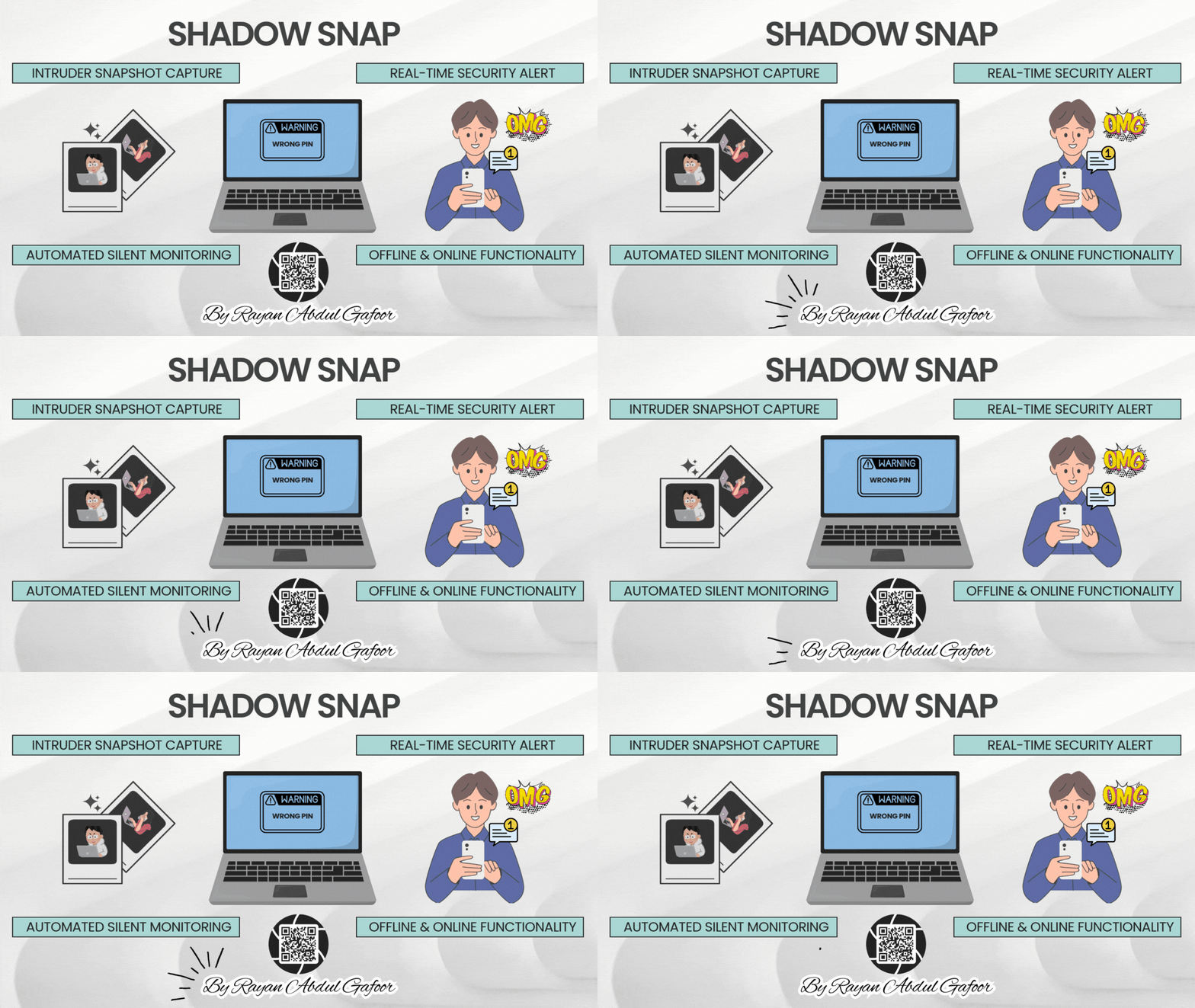
In this tutorial we will learn how to capture intruders on your system and get instant Telegram alerts.
- Use Case: Have you ever wondered or worried if someone spies on you or tries to access your system in your absence? Have you ever wished there was a feature in your system, like in your smartphone, where you could capture the photo when the unlock PIN is incorrect? Then this tutorial is just for you.
- Technologies Used: FFmpeg, Windows Task Scheduler, and PowerShell Script.
- Time Required to Setup: 15-20 mins.
Part 1: Capturing the Intruder’s Photo
Objectives
In this section we will discuss how to automate the capture of the intruder's photo.
Requirements
Need a PC with a webcam . It works like a charm in Windows every time.
Step 1: Enable Failed Logon Auditing on Windows Home
- Search for cmd , and run as Administrator .
-
Enter this command mentioned below and press enter.
auditpol /set /subcategory:"Logon" /failure:enableThis enables auditing for failed logon attempts (same as
secpol.msc).
-
To verify, run:
auditpol /get /subcategory:"Logon"You should see:
Logon Success and Failure
Step 2: Confirm Events Are Logged
- Press Win + X → Event Viewer , or search for Event Viewer.
-
Navigate:
Windows Logs > Security
-
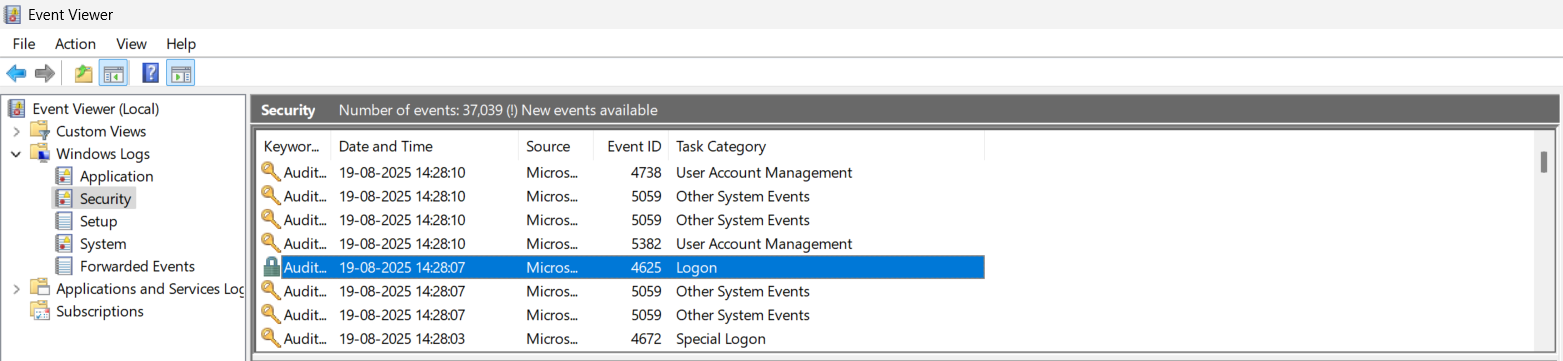
After entering a wrong password, check if you see
Event ID 4625
. That’s the
failed logon
event we’ll hook into Task Scheduler.
- 4625 → Failed logon
- 4624 → Successful logon (for reference)
Step 3: Task Scheduler Setup (Intruder Photo Capture)
-
Create a Folder for Captured Photos
-
Open File Explorer and create:
C:\IntruderPics
This is where your intruder snapshots will be stored.
-
Open File Explorer and create:
-
Check if you actually have ffmpeg
-
Open
File Explorer
→ go to
C:\ffmpeg\bin\
-
Inside, you should see a file named:
ffmpeg.exe
- If it’s not there, you need to download & extract ffmpeg first.
-
Official builds: https://www.gyan.dev/ffmpeg/builds/
Builds - CODEX FFMPEG @ gyan.devFFmpeg is a widely-used cross-platform multimedia framework which can process almost all common and many uncommon media formats. It has over 1000 internal components to capture, decode, encode, modify, combine, stream media, and it can make use of dozens of external libraries to provide more capabilities.
 https://www.gyan.dev/ffmpeg/builds/
-
(Download
ffmpeg-release-essentials.zip, extract it, then move thebinfolder toC:\ffmpeg\).
-
Open
File Explorer
→ go to
- Create the PowerShell Script.
-
Open
Notepad
, paste this code:
# Capture intruder photo when wrong password entered
$timestamp = Get-Date -Format "yyyyMMdd_HHmmss"
$filepath = "C:\IntruderPics\Intruder_$timestamp.jpg"

# Use ffmpeg to capture image from default camera
Start-Process -NoNewWindow -FilePath "C:\ffmpeg\bin\ffmpeg.exe" -ArgumentList "-f dshow -i video=""Integrated Camera"" -frames:v 1 $filepath"
-
Save it as:
C:\Scripts\capture.ps1-
If the folder
C:\Scriptsdoesn’t exist, create it.
-
If the folder
-
Replace
"Integrated Camera"
with your actual webcam name:
-
Run this command in PowerShell to list devices:
C:\ffmpeg\bin\ffmpeg.exe -list_devices true -f dshow -i dummy
-
This should now run without the “not recognized” error, and it will list your webcam devices. (You’ll see something like
"Integrated Camera"or"USB Camera").
-
In my case I got the output as shown below:
-
"HP True Vision FHD Camera"✅ (my laptop’s main webcam)
-
"OMEN Cam & Voice"
-
"OBS Virtual Camera"
-
-
Run this command in PowerShell to list devices:
Step 4: Update Your PowerShell Script
Now that we know the camera name , let’s use it in the script.
-
Edit your
C:\Scripts\capture.ps1and replace the"Integrated Camera"line with your actual webcam name : (In my case it isHP True Vision FHD Camera).# Capture intruder photo when wrong password entered $timestamp = Get-Date -Format "yyyyMMdd_HHmmss" $filepath = "C:\IntruderPics\Intruder_$timestamp.jpg" # Use ffmpeg to capture image from HP webcam Start-Process -NoNewWindow -FilePath "C:\ffmpeg\bin\ffmpeg.exe" -ArgumentList "-f dshow -i video=""HP True Vision FHD Camera"" -frames:v 1 $filepath"
Step 5: Test Script Manually
Before we hook it into Task Scheduler, let’s test:
- Open PowerShell .
-
Run:
powershell -ExecutionPolicy Bypass -File "C:\Scripts\capture.ps1"
-
Check
C:\IntruderPics\→ you should see a photo (Intruder_20250819_XXXXXX.jpg).If it works → then your camera + ffmpeg + script are all fine.
.png)
Step 6: Create Task in Task Scheduler
-
Press
Win + R
, type
taskschd.msc, press Enter, or search for theTask Scheduler.
- Click Create Task (not Basic Task).
-
General Tab
-
Name:
Capture Intruder Photo
-
Select:
Run only when the user is logged on
-
Check:
Run with highest privileges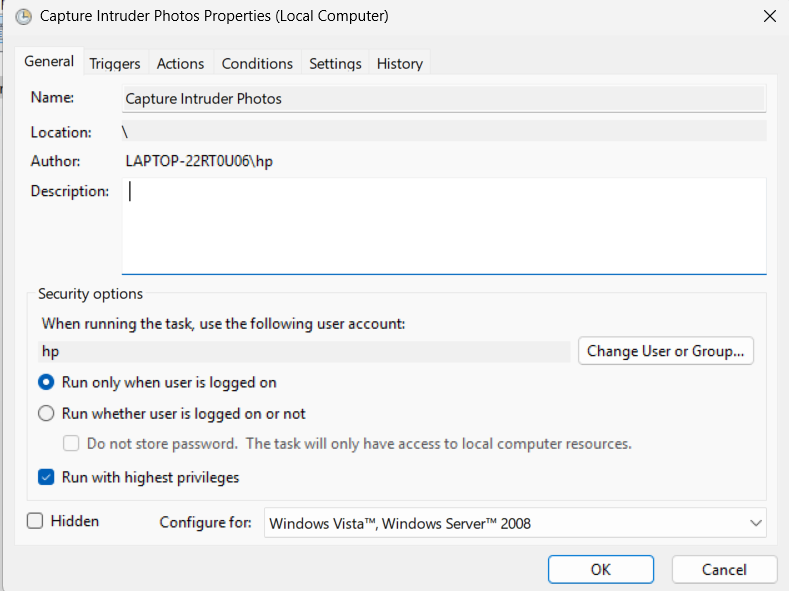
-
Name:
-
Triggers Tab
-
Click:
New
-
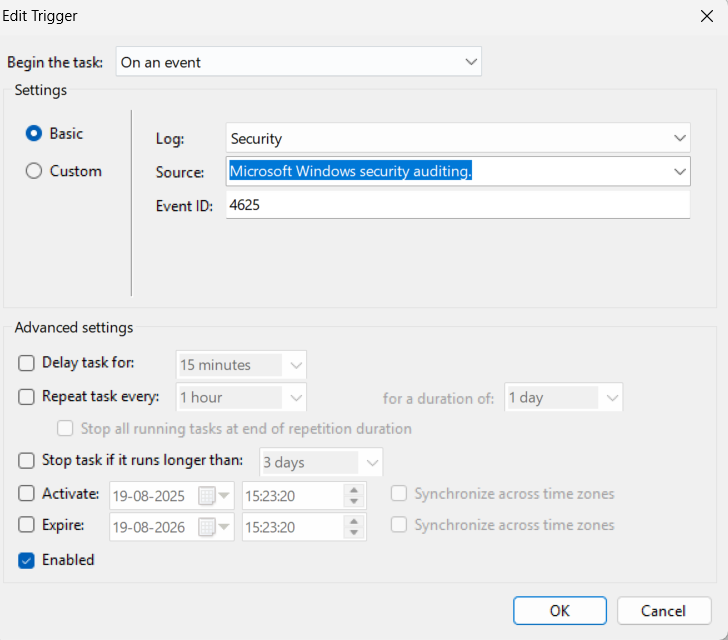
Begin the task:
On an event
-
Log:
Security
-
Source:
Microsoft Windows security auditing
-
Event ID:
4625
-
Click:
OK
-
Click:
-
Actions Tab
-
Click:
New
-
Action:
Start a program
-
Program/script:
powershell.exe
-
Add arguments:
-ExecutionPolicy Bypass -File "C:\Scripts\capture.ps1"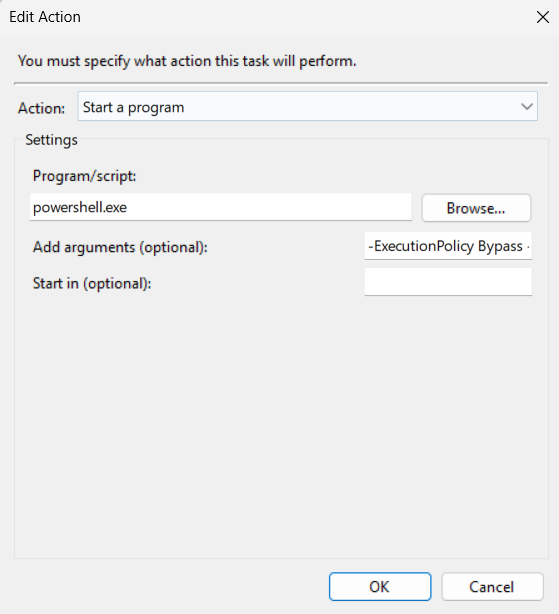
-
Click:
-
Conditions & Settings Tab
-
Uncheck:
"Start the task only if the computer is on AC power".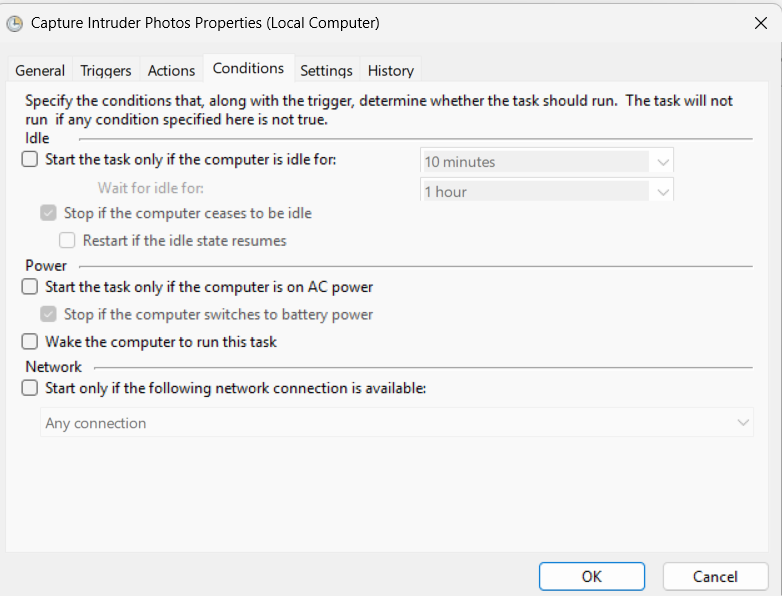
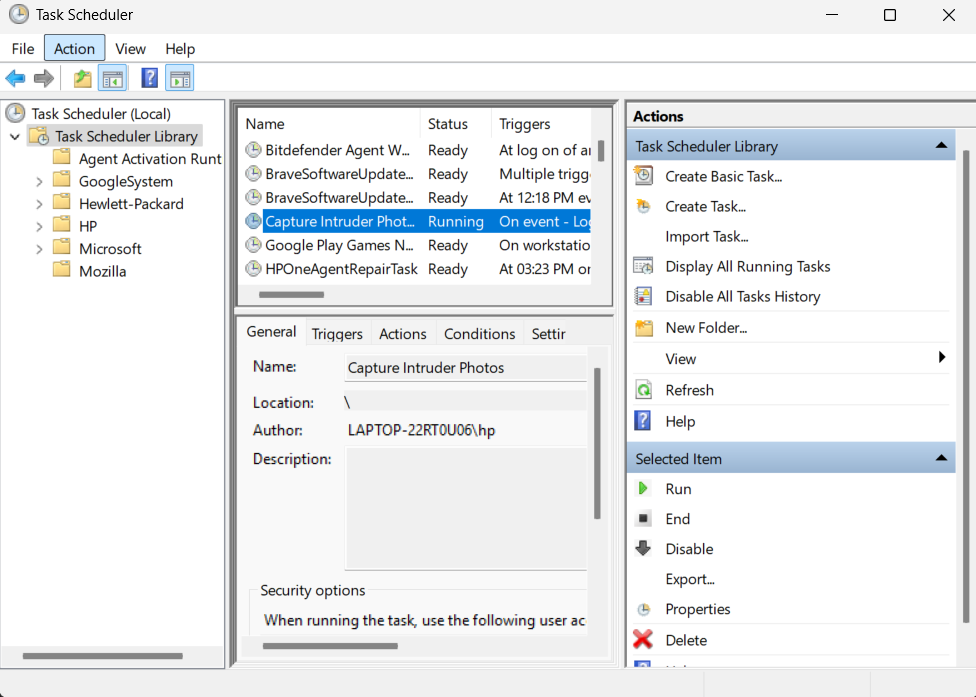
Now we successfully created the task in Task Scheduler
-
Uncheck:
-
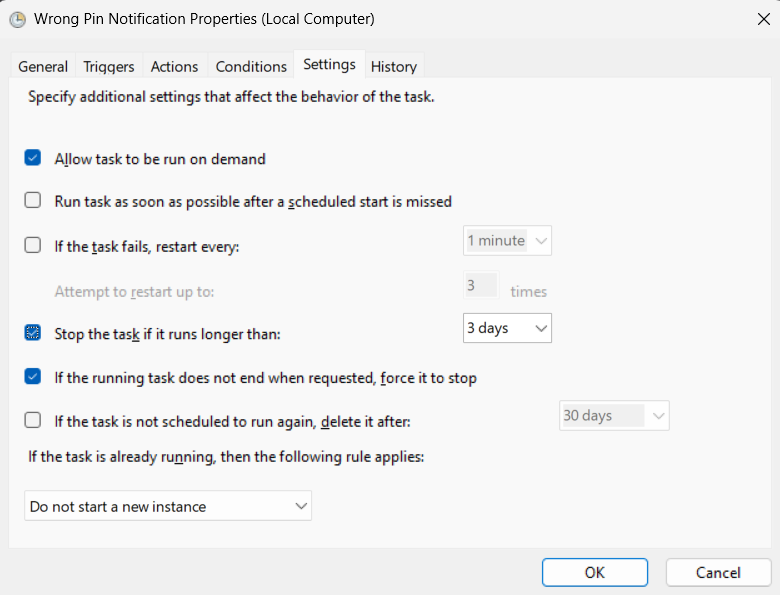
Settings Tab
- Make sure Allow task to be run on demand is checked.
- Check If the task fails, restart every… (optional for reliability).
-
Test the Task
-
Right-click your task →
Run
.
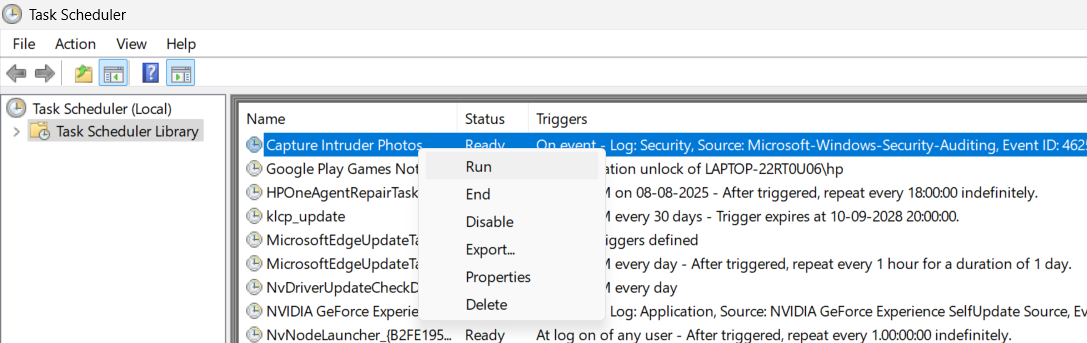
Check
C:\IntruderPics→ You should see a photo captured with a timestamp.
-
Right-click your task →
Run
.
Step 7: Test the Setup
- Lock your PC ( Win + L ).
- Type a wrong password.
- Log in normally.
-
Check
C:\IntruderPics→ You should see a photo captured with a timestamp.
Part 2: Telegram and Windows Pop-up Notification
Objectives
In this section we will discuss how to automate sending Telegram and Windows pop-up notifications when failed login attempts are detected.
Requirements
Make sure your system is connected to network to send the telegram notification and no need of network for photo capturing and windows pop-up.
Step 1: Enable Windows Event Logging for Failed Logins
Windows already logs failed login attempts under
Event Viewer
→
Windows Logs → Security
.
The relevant Event IDs are:
- 4625 → Failed logon
- 4624 → Successful logon (for reference)
Step 2: Create a Telegram Bot
- Open Telegram and search for @BotFather .
-
Run
/start→/newbot.
- Give it a name and username.
-
Copy the
Bot Token
(looks like
123456789:ABC-...).
-
Get your
chat ID
:
- for that start a chat with your bot and send a message.
-
Open this link in your browser (replace
<TOKEN>):https://api.telegram.org/bot<TOKEN>/getUpdates
-
Look for
"chat":{"id": ... }→ That’s your chat ID (appears only when you start a chat with that bot and refresh the link mentioned above in your browser).
Step 3: Script to Detect Wrong PIN and Send Telegram Message
We’ll use
PowerShell
since it runs natively on Windows.
-
Replace the
$tokenand$chatidwith yourtoken and chat id.
# wrongpin.ps1
# Detects failed login attempts and sends Telegram notification immediately


# Telegram bot details, change it your token and chatid
$token = "8350808925:AAGMDj********-ahWOD79tKB05MpyQk"
$chatid = "59******66"

# Get the latest failed logon attempts (Event ID 4625 = Failed Logon)
$events = Get-WinEvent -FilterHashtable @{LogName='Security'; Id=4625} -MaxEvents 1

foreach ($event in $events) {
    $message = $event.Message
    $time = $event.TimeCreated

    # Prepare Telegram message
    $text = "Wrong PIN / Password attempt detected on PC.`nTime: $time`nMessage:`n$message"
    $url = "https://api.telegram.org/bot$token/sendMessage?chat_id=$chatid&text=$($text -replace ' ', '%20')"

    # Send to Telegram FIRST (non-blocking)
    try {
        Invoke-RestMethod -Uri $url -Method Get | Out-Null
    } catch {
        Write-Host "Failed to send Telegram notification: $_"
    }

    Add-Type -AssemblyName System.Windows.Forms

# Create and show message box
[System.Windows.Forms.MessageBox]::Show(
    "Wrong PIN entered!",
    "Authentication Failed",
    [System.Windows.Forms.MessageBoxButtons]::OK,
    [System.Windows.Forms.MessageBoxIcon]::Error
) | Out-Null
}-
Save your PowerShell script (for example
wrongpin.ps1) in a location that never changes .Example:
C:\Scripts\wrongpin.ps1
Step 4: Test Script Manually
Before we hook it into Task Scheduler, let’s test:
- Open PowerShell .
-
Run:
powershell -ExecutionPolicy Bypass -File "C:\Scripts\wrongpin.ps1"
- Check: if it sends a Telegram test message.
Step 5: Create Task in Task Scheduler
- Open Task Scheduler
- Click Create Task (not Basic Task , because we need more control).
-
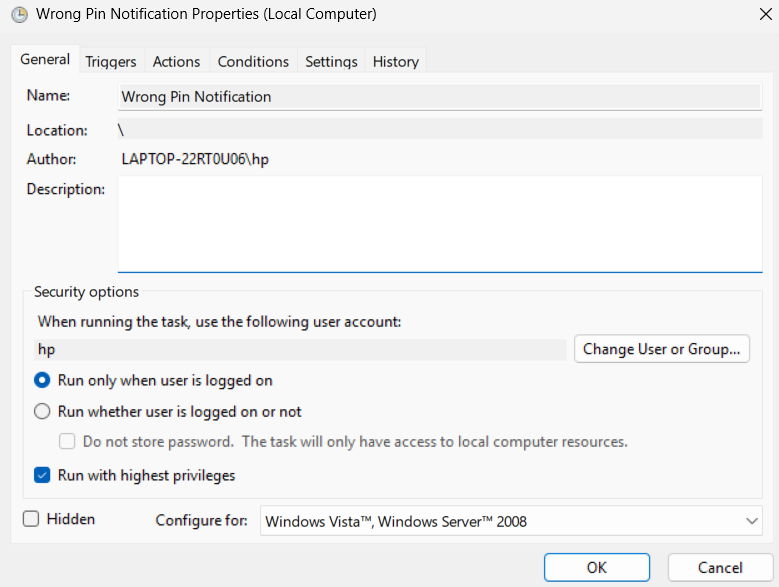
General Tab
-
Name:
Wrong PIN Monitor
-
Select:
Run only when user is logged in
-
Check:
Run with highest privileges
-
Name:
-
Triggers Tab
:
-
Click:
New
-
Begin the task:
On an event
-
Log:
Security
-
Source:
Microsoft Windows security auditing
-
Event ID:
4625
-
Click:
OK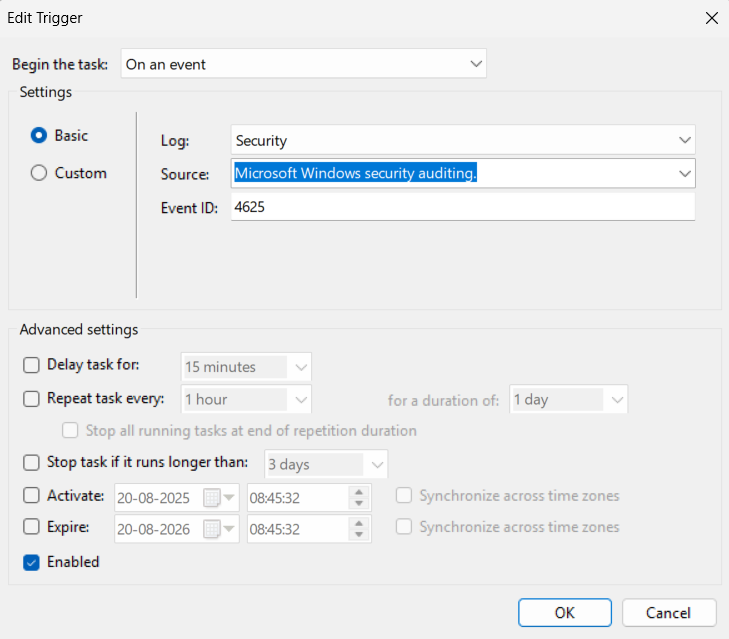
-
Click:
-
Action Tab:
-
Click:
New
-
Action:
Start a program
-
Program/script
:
powershell.exe
-
Add arguments (optional)
:
-ExecutionPolicy Bypass -File "C:\Scripts\wrongpin.ps1"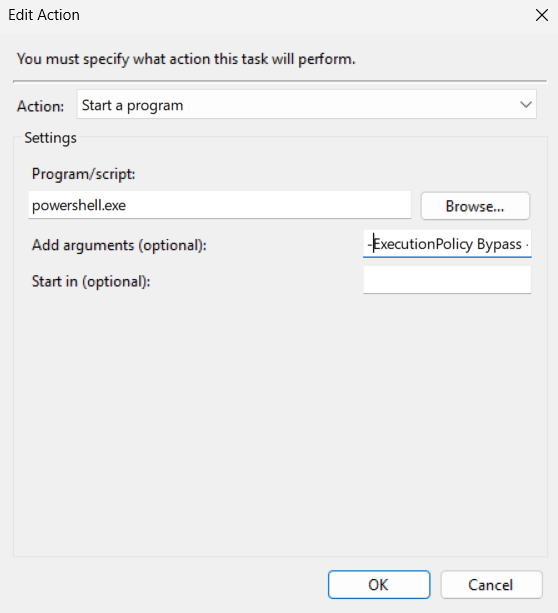
-
Click:
-
Conditions Tab
-
Uncheck:
“Start the task only if the computer is on AC power”(if on laptop).
-
Uncheck:
“Start the task only if idle”→ otherwise it won’t trigger.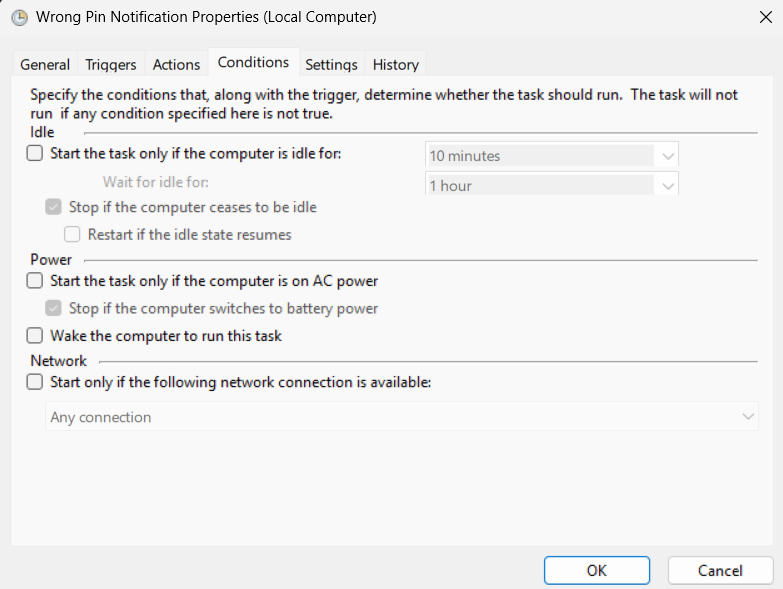
-
Uncheck:
-
Settings Tab
- Make sure Allow task to be run on demand is checked.
- Check If the task fails, restart every… (optional for reliability).
-
Test the Task
-
Right-click your task →
Run
.
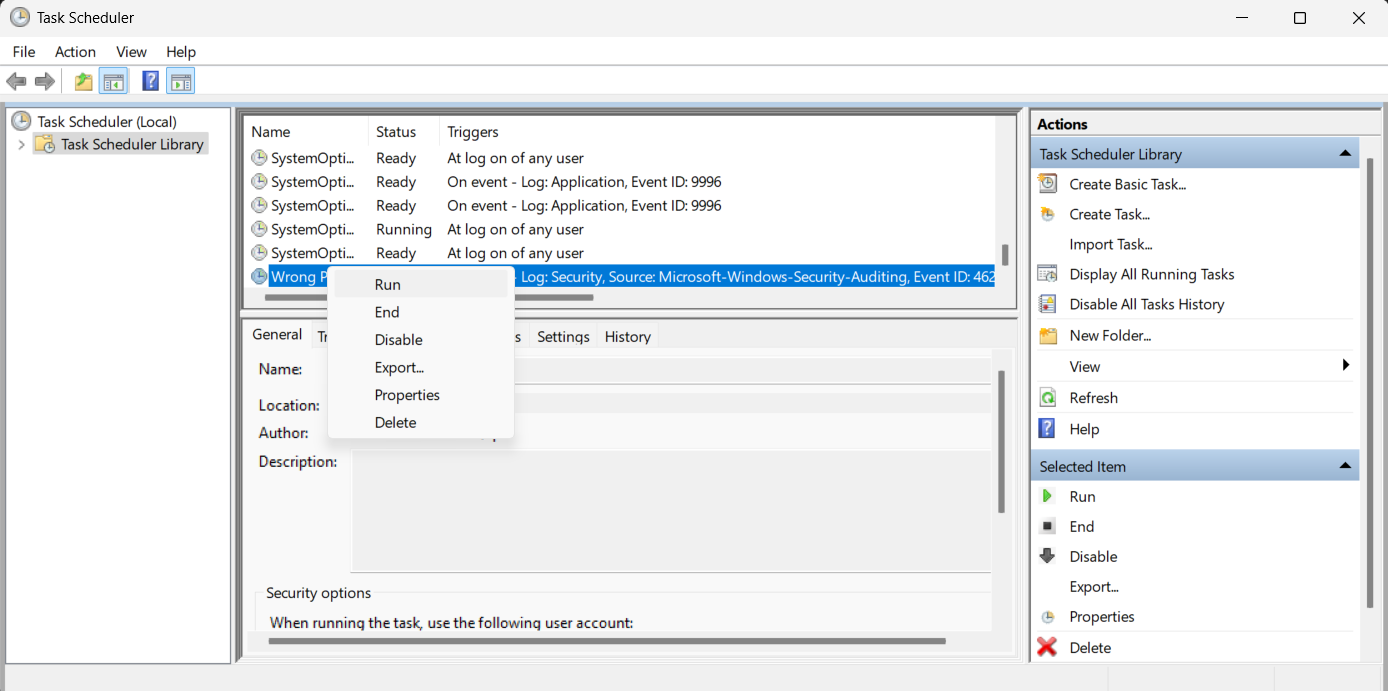
Does your PowerShell script run manually? (Check if it sends a Telegram test message).
-
Right-click your task →
Run
.
Step 6: Test the Setup
- Lock your PC ( Win + L ).
- Type a wrong password.
- Log in normally.
-
Check:
C:\IntruderPics→ You should see a photo captured with a timestamp.
-
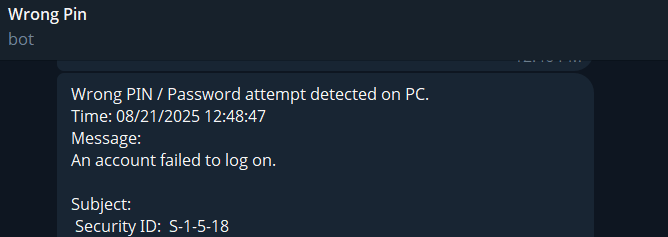
Check if it sends a Telegram test message. If it does, congratulations, you made it 🎉.